Password change in SES.HOSPEDAJES for data submission via web service
Learn how to correctly change your SES.HOSPEDAJES web service password to ensure smooth data submission. Avoid common connection errors with Raixer Check-In.
If you use Raixer Check-In to automate the submission of traveller reports and bookings to SES.HOSPEDAJES, it is crucial that you correctly configure the web service connection. One of the most common errors occurs when entering the incorrect password. In this article, we explain how to change it correctly to avoid connection problems.
Prerequisites
Before proceeding with the password change, ensure that:
- You have registered your establishment in SES.HOSPEDAJES. If you haven't done so yet, you can consult our detailed guide on the process.
- You have activated the option “Web service communication submission”.
- You know the difference between the password for accessing the web platform and the web service password.
Important about passwords!
The password you need to submit data via web service is NOT the same as the one you use to access the web platform of SES.HOSPEDAJES. They are two distinct credentials, and this is a common error when attempting to validate the connection from Raixer Check-In.
If, when registering or modifying accommodation in Raixer Check-In, you receive an error when validating the connection with SES.HOSPEDAJES, it is likely that the password entered for web service communication is incorrect. If you do not remember it or do not know it, follow these steps to change it.
Considerations before changing the password
Each landlord code has a unique password for the web service. This means that if you change the password, it will affect all establishments registered under that same landlord code. In that case, you must manually update the password in each of your accommodations registered in Raixer Check-In for the connection with the Ministry to continue functioning correctly.
Steps to change the password
1. Access SES.HOSPEDAJES
Go to the Ministry's establishment management portal and log in with your digital certificate or DNIe.
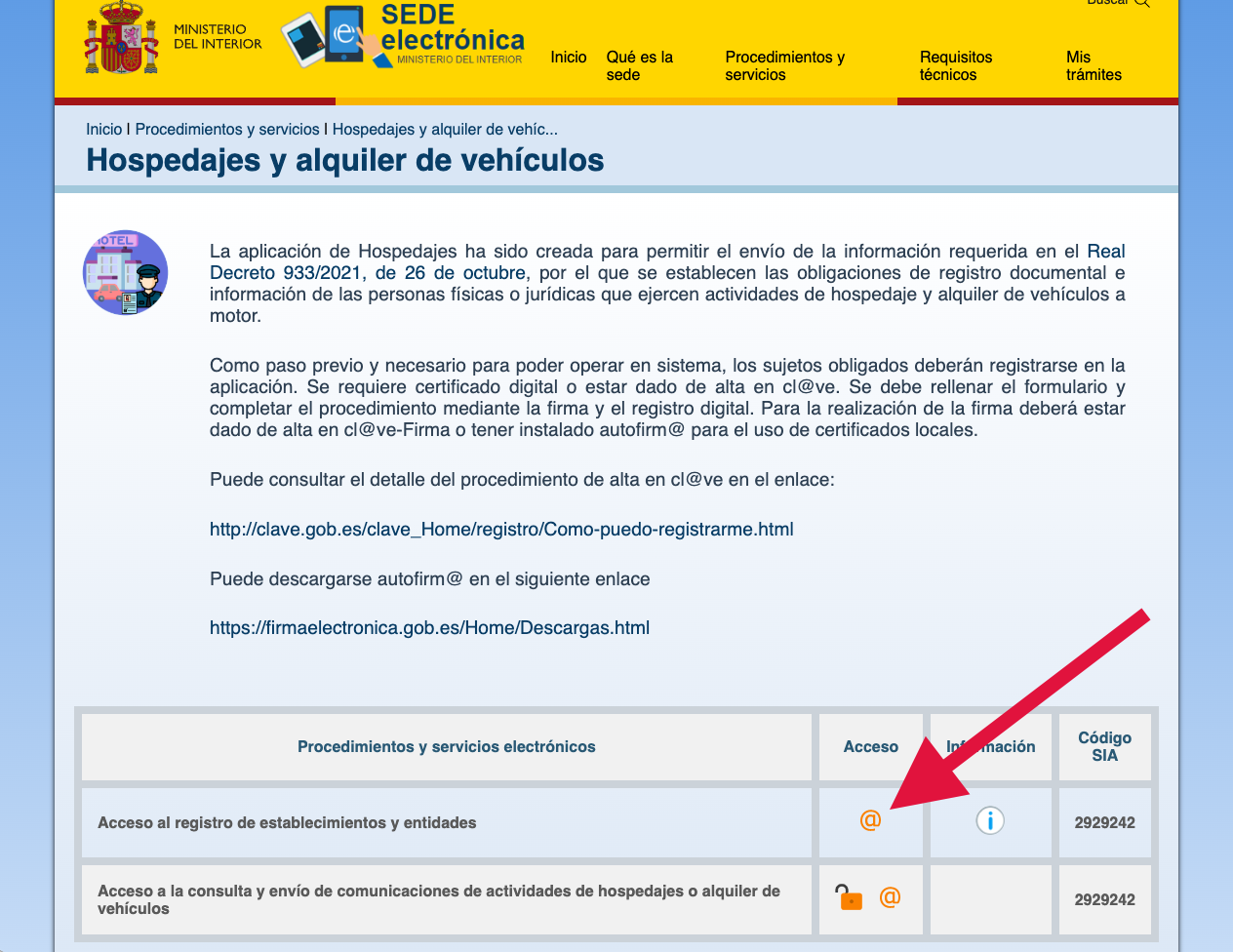
2. Locate the “Web service user” option
Within the platform, click the Web service user button.
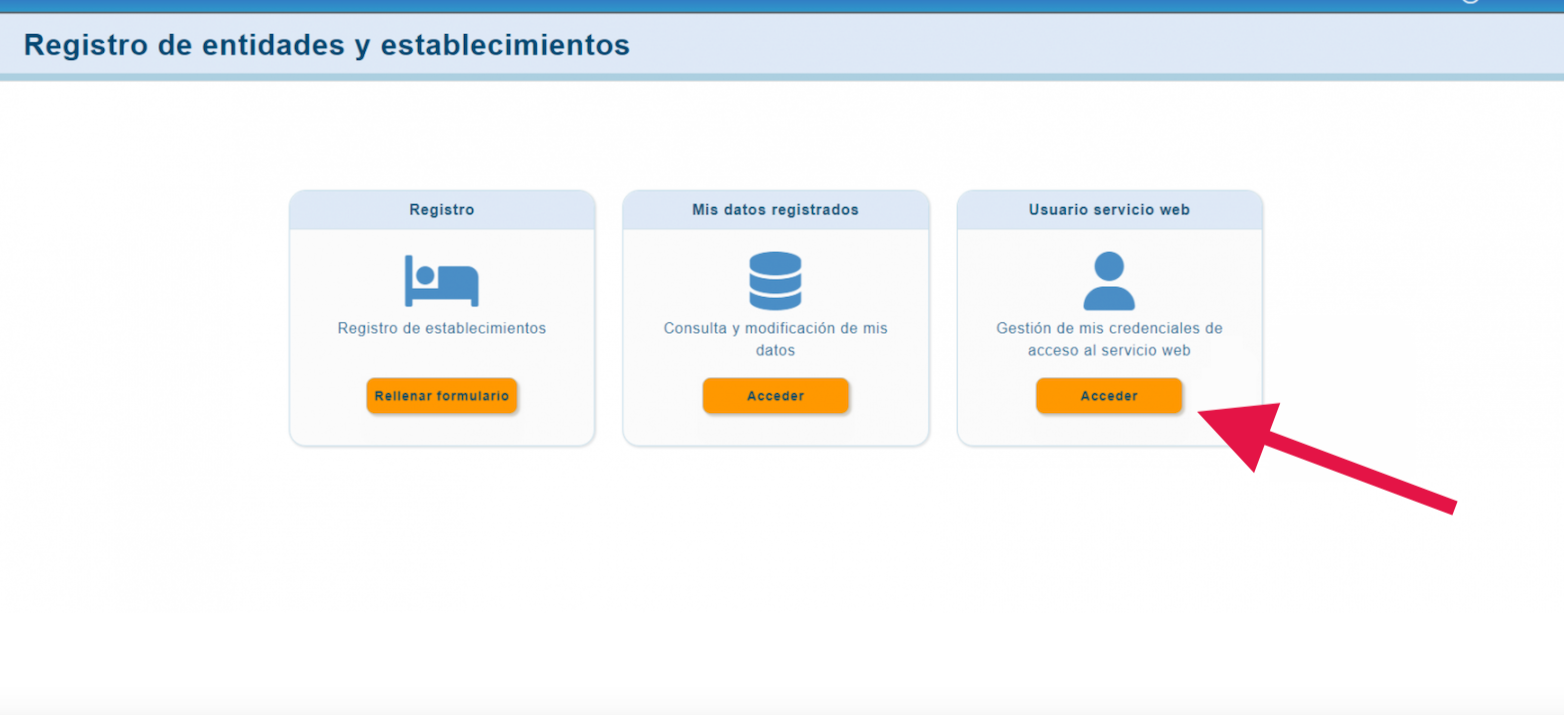
3. Select “Change password”
Click the button to modify your key for web service access.
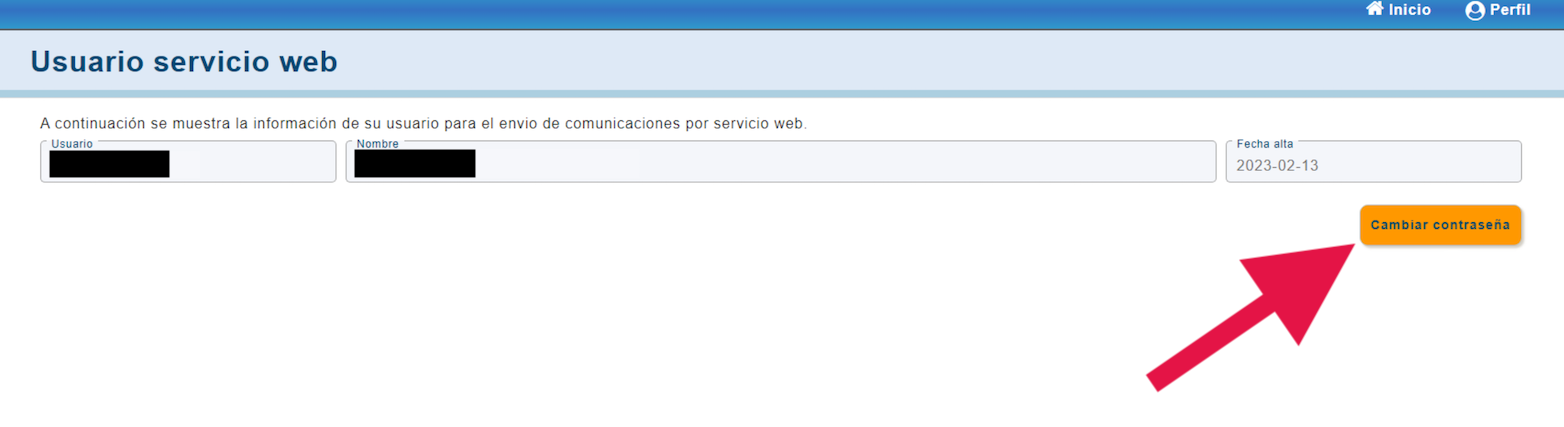
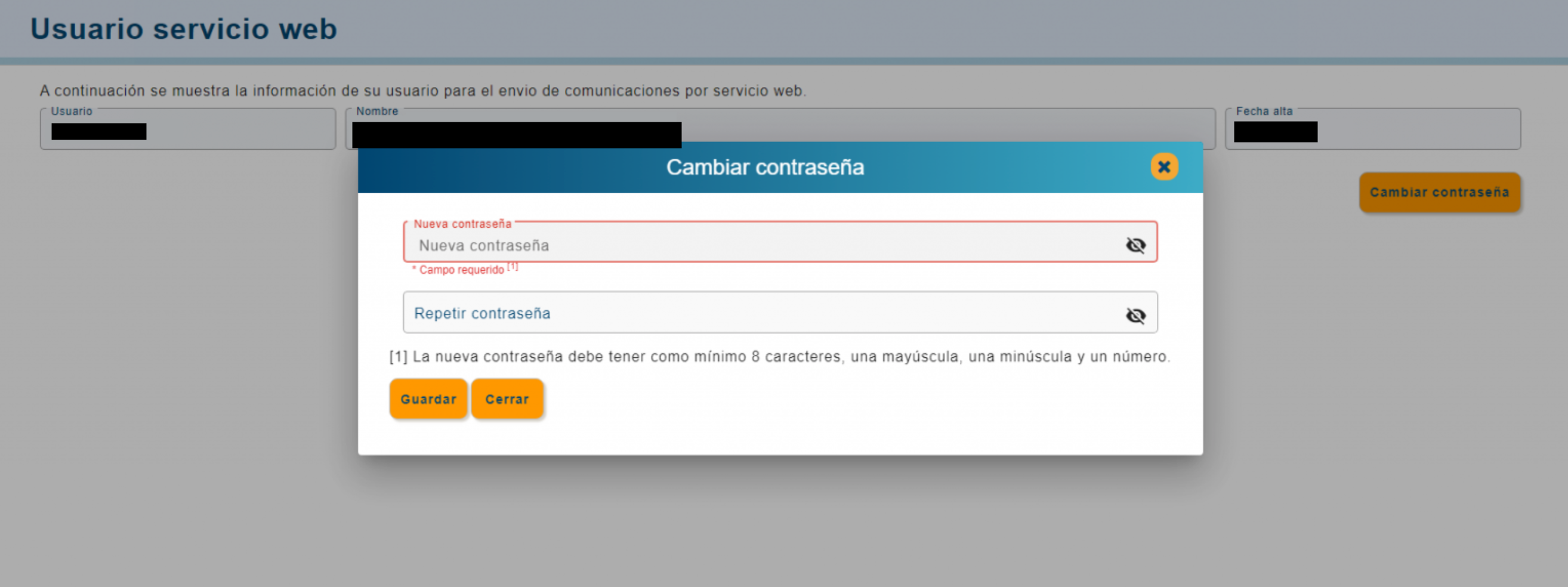
4. Enter and save the new password
A window will appear where you can enter your new password. Make sure to save it in a safe place and update it in Raixer Check-In to avoid connection errors.
Properly configuring the web service password in SES.HOSPEDAJES is key for the correct functioning of Raixer Check-In. Following these steps will help you avoid connection errors and ensure automated submission of traveller reports and bookings.